
Coe Operations Historic Buildings is an app to test and broaden your knowledge of Historic Buildings. It includes links to Kiddle (Kids Encyclopedia Facts) or Wikipedia for further information and to their respective websites.
Click the icon above to play in your web browser.

Buildings may be filtered by category, which can be selected by tapping or clicking the menu bar buttons at the top. The default option is all Historic Buikdings.
Stately Homes as a category is applied loosely to include country houses and the like. Some may even have 'Castle' in their name, such as fortified manor houses for example.


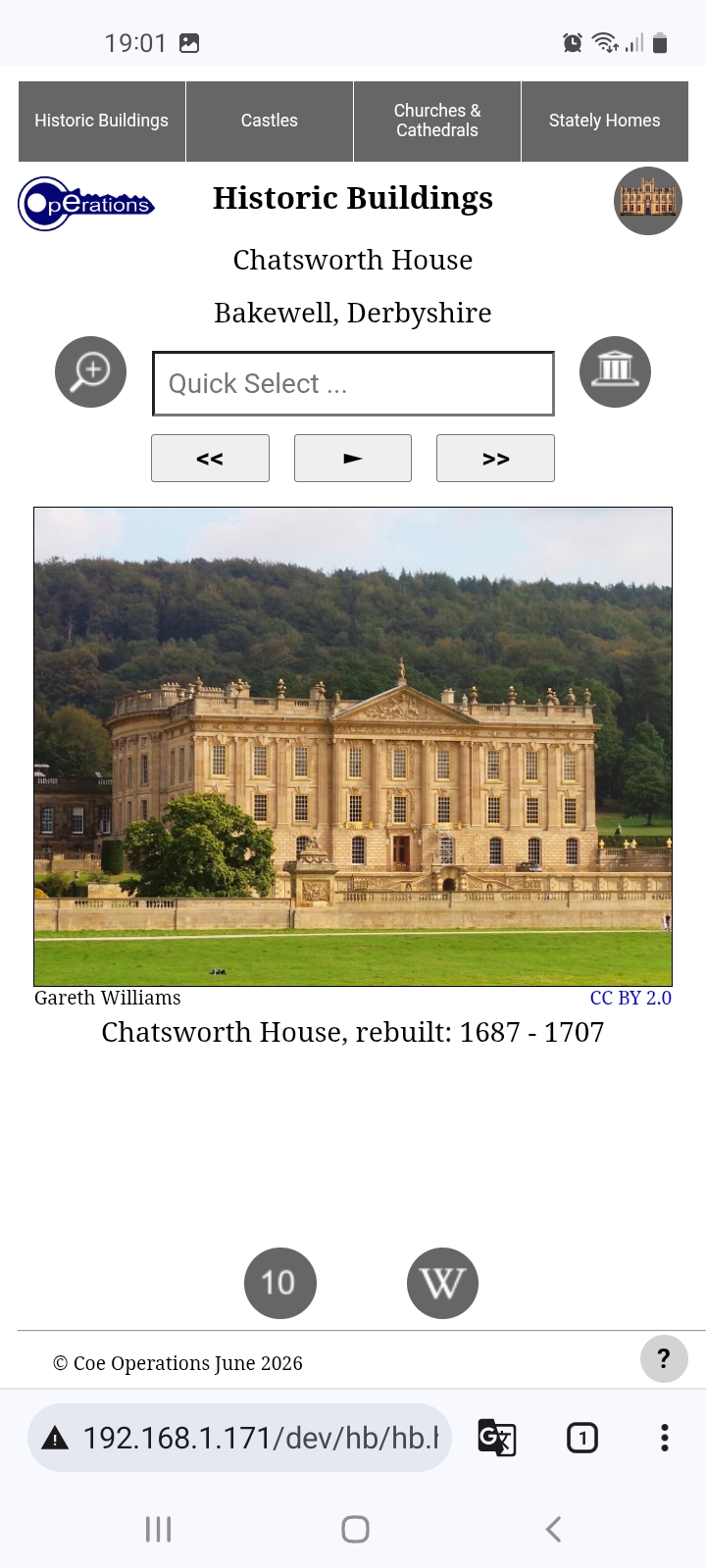
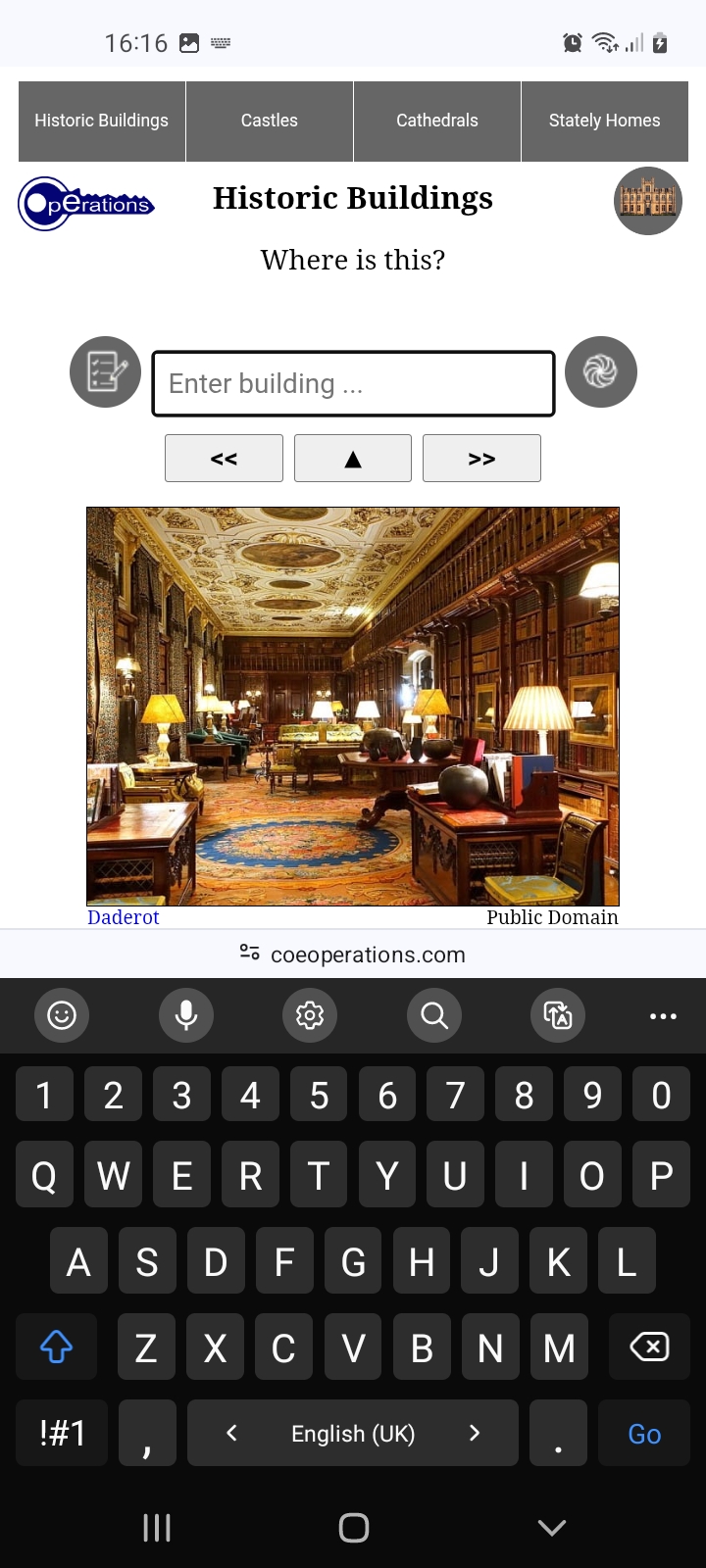
There are two views, Exterior and Interior View. Exterior View has hyperlinks to Kiddle or Wikipedia pages for further information in Display Mode. Interior View links directly to its respective website, selecting its history page where available. Just click the picture to follow.
All images are cropped and/or resized from royalty free originals sourced from Wikimedia Commons.


There are two modes, Display Mode that comprises the hyperlinks mentioned above and Test Mode that tests yor ability to identify historic sites.
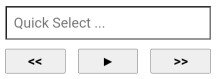
You can type directly into the input field with Quick Select to select buildings beginning with that letter, rolling over to the next available option with audible feedback if there are none. Otherwise you may continue typing and/or press Enter/Go when ready. Alternatively use the Option List itself to go to your chosen destination. Backward and forward buttons are also provided for navigation; the Left and Right Arrow keys can be used when viewing on a computer.
Display Mode also has a Play button to move on every seven and a half seconds, so the screen stays on because of its slideshow characteristics. Do not leave your device unattended as it could drain the battery. You will be asked however whether you are still watching after 10 minutes of inactivity.
Historic Buildings launches in whichever mode was last used if local storage has been granted. Click the Mode button to switch between them.


The encyclopedia button is for choosing between Kiddle and Wikipedia for further information. If granted your choice is saved in your browser's local storage.


You may choose 10 or All randomly selected sites to identify from the current category. Correct solutions are shown after three wrong answers and may be reviewed at the end of the test. Press the central Stop button to exit the review.
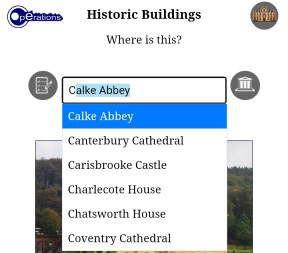
Typing is the preferred input method. Options beginning with entered text are filtered and autocompleted as you type, as shown above and in the following image. Since options are limited to those in the list, you are audibly warned when none exist, most likely the result a typing error, and the offending character is removed. Just accept the free hit if it wasn't a typo.
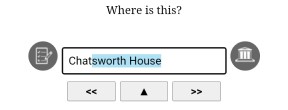
Press Enter/Go or the central Submit button once filtered to the first or last remaining option, as shown above, to submit that as your answer. No further typing is necessary. Use the Backspace key as usual to correct mistakes.
The Option List's abbreviations facility has not been used by Historic Buildings but full stops and apostrophes may be omitted and still be accepted as valid answers.
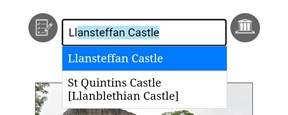
Alternative Name are accepted in some cases too. St Quintins Castle for example is also known as Llanblethian Castle, so you may enter either. Where applicable they are enclosed within square brackets in the Option List.
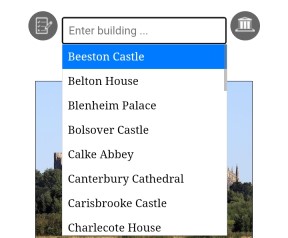
Selection can also be made by directly interacting with the Option List itself. Tap or click the input field at any time to show or hide it. Nothing is displayed where no options match the text in the input field, whereas all are available when there is none.
The list can be swiped as usual on touch screens or scrolled with the mouse wheel on computers. Items are selected by tapping or clicking them. Press the Submit button or the Enter/Go key to submit your answer. Of course you may use a combination of typing and the Option List.
The Up and Down Arrow keys can also be used on computers to activate the option list if hidden and to scroll and dynamically make selections. Press Enter when ready.
If permitted, your settings and whether you closed during a test are saved in your browser's local storage. If you have more correct than wrong answers you are asked whether you wish to resume the test next time you launch the app.
As a family member of the National Trust, my granddaughter loves her visits to historic sites. It never ceases to amaze how much she gleans and can recount from just one visit. That is why I have provided an app that links to further information.
Coincidentally the father of one of her best friends was working on the restoration of Chatsworth House when they first met at primary school. It should be noted that Chatsworth is not a National Trust site.
Bug fixes or additions in the latest release.
03/10/2026
Updated: Test Mode image scale adjustments for iPhone.
28/09/2026
Updated: Image scaling on mobiles during tests.
26/09/2026
Updated: Maintain Option List selected item between wrong answers.
25/09/2026
Fixed: Resolved input focus events with unwanted keyboard activation on mobiles.
24/09/2026
Fixed: Message channel closed error when dynamically added element clicked.
Updated: Up Arrow key also activates Option List.
23/09/2026
Updated: Maintain Option List selected item in Display Mode.
Fixed: Reviewing wrong answers no longer scaled for virtual keyboard.
19/09/2026
Updated: Improved layout for more devices in landscape orientation.
16/09/2026
Fixed: Returning focus on input after mouse-click on buttons.
11/09/2026
Added: Audible feedback added to Quick Select.
09/09/2026
Updated: No spaces in image filenames.
Fixed: Full screen button only available where supported.
29/08/2026
Added: Full screen mode added for most browsers.
13/08/2026
Added: Alternative names added.
06/08/2026
Updated: Option List Quick Select has been upgraded.
02/08/2026
Updated: Recompiled with latest Option List.
16/07/2026
Fixed: Error in resume test dialog.
13/07/2026
Updated: Data saved in local storage if permitted for faster load times.
Updated: Last update time triggered in database for reload as required.
You are free to use and distribute this software or web package provided it is accredited and supplied in its entirety with no alteration and that no fee is charged. All source code remains the property of Coe Operations.
© Coe Operations June 2026