
Coe Operations Bare Bones is an app where you can learn about and be tested on your knowledge of the human skeleton. It includes links to Kiddle or Wikipedia for further information.
Click the icon above to play in your web browser.


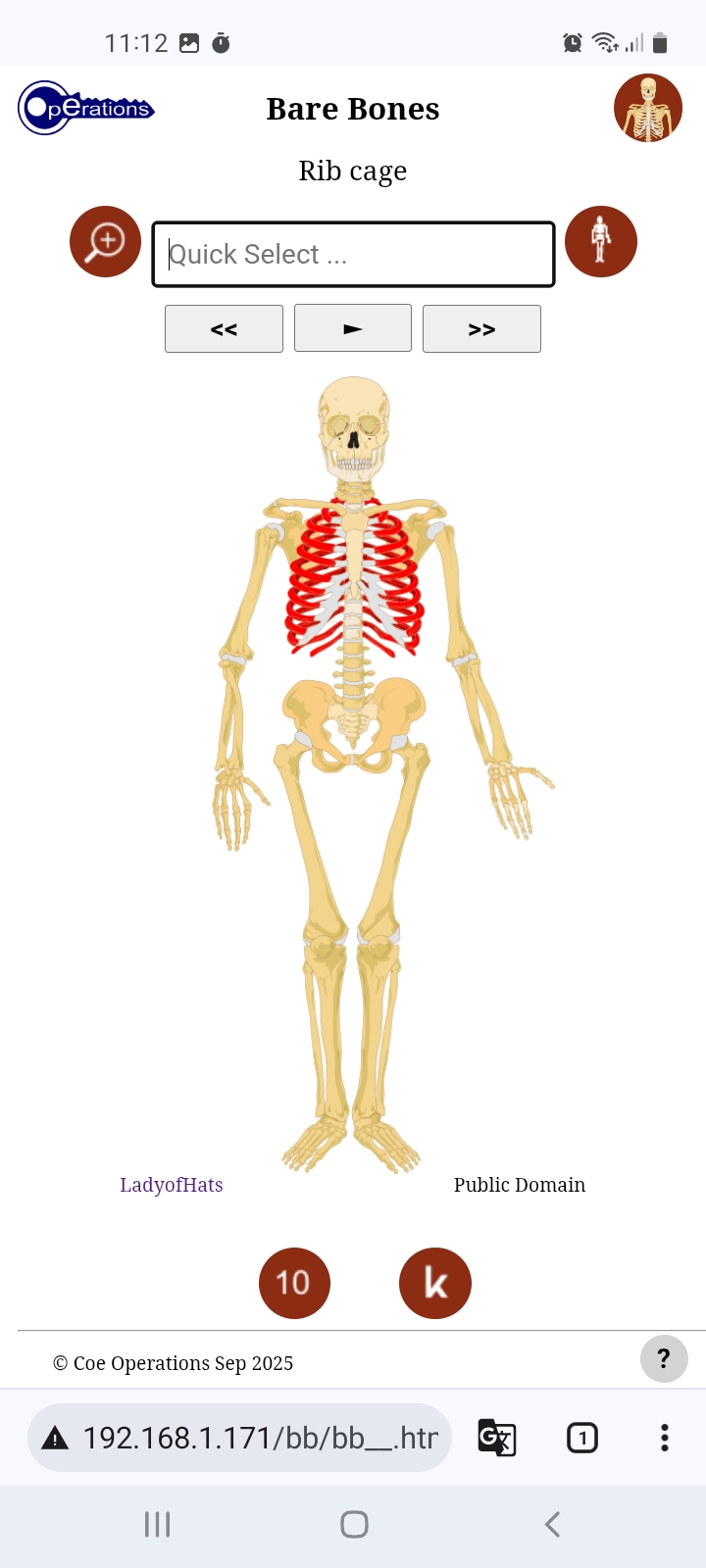
There are two views, Full Body View and Detailed View where you can learn or test your knowledge of the human skeleton. Full Body View is slightly more generalised and shows common names for some bones, which may also be used during tests. Some Detailed View images are subsets of more generalised ones so can be displayed as such if changing view in one of them. Press the central stop button to escape the subset.
All images have been edited from those available at Wikimedia Commons. Information about the edits is provided later in this document with accreditation provided for their respective source files.
Tap or click the button to switch views.


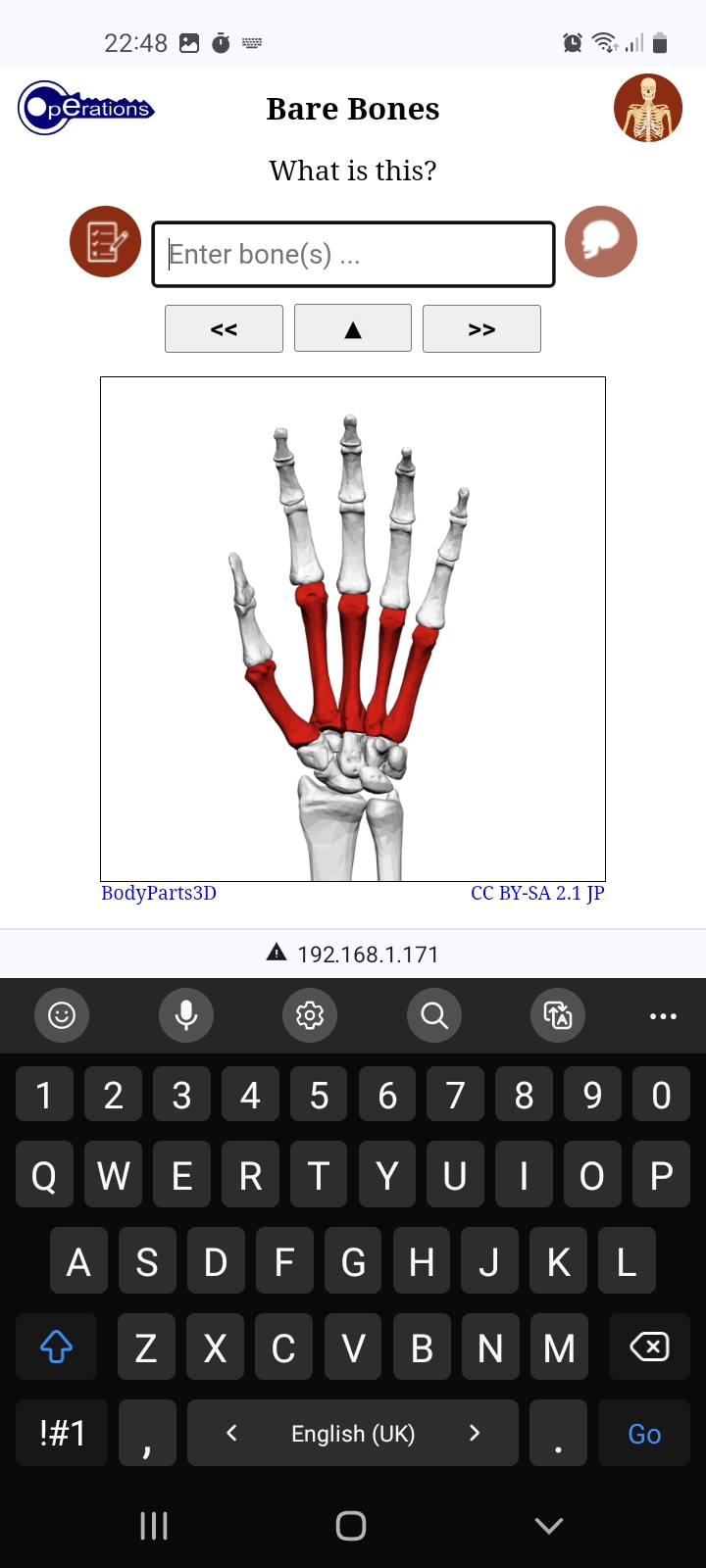
There are two modes, Display Mode that highlights individual bones and Test Mode to see how well you can identify them. Display Mode comprises hyperlinks to Kiddle or Wikipedia for further information.
You can type directly into the input field with Quick Select to select bones beginning with that letter, rolling over to the next available option with audible feedback if there are none. Otherwise you may continue typing and/or press Enter/Go when ready. Alternatively use the Option List itself to go to your selection. Backward and forward buttons are also provided for navigation; the Left and Right Arrow keys can be used when viewing on a computer.
Display Mode also has a Play button to move on every seven and a half seconds, so the screen stays on because of its slideshow characteristics in the Android app and most browsers. You will be asked however whether you are still watching after 10 minutes of inactivity.


The encyclopedia button is for choosing between Kiddle and Wikipedia for further information. If granted your choice is saved in your browser's local storage as are your other preferences.
There are two primary test options, the general one in Full Body View or the slightly more advanced test in Detailed View. Switching is not permitted during a test.


You may also choose 10 or All randomly selected bones to identify. Correct solutions are shown after three wrong answers and may be reviewed at the end of the test. Press the central Stop button to exit the review.
The virtual keyboard may be hidden on phones for visibility during tests in Full Body View. Tap the input field to activate and once more if you wish to hide the Option List.
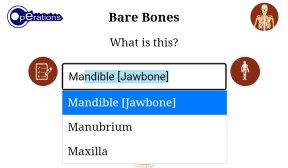
Typing is the preferred input method. Options beginning with entered text are filtered and autocompleted as you type, as shown above and in the following image. Since options are limited to those in the list, you are audibly warned when none exist, most likely the result a typing error, and the offending character is removed. Just accept the free hit if it wasn't a typo.
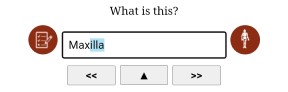
Press Enter/Go or the central Submit button once filtered to the first or last remaining option, as shown above, to submit that as your answer. No further typing is necessary. Use the Backspace key as usual to correct mistakes.
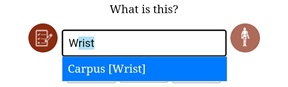
The Option List's abbreviations facility has been used to enable input of common names, such as the above, in Full Body View. They are included in square brackets.
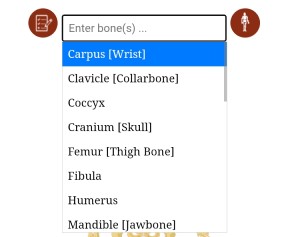
Selection can also be made by directly interacting with the Option List itself. Tap or click the input field at any time to show or hide it. Nothing is displayed where no options match the text in the input field, whereas all options are available when there is none.
The list can be swiped as usual on touch screens or scrolled with the mouse wheel on computers. Items are selected by tapping or clicking them. Press the Submit button or the Enter/Go key to submit your answer. Of course you may use a combination of typing and the Option List.
The Up and Down Arrow keys can also be used on computers to activate the option list if hidden and to scroll and dynamically make selections. Press Enter when ready.
Bare Bones was originally envisaged as a more comprehensive Human Body app, however gathering and editing suitable royalty free images has proved more challenging than expected. Although I don't completely rule that out, I felt it time to release what had already been collated for the skeleton alone.
The Full Body images are from vector graphics originals by LadyofHats Mariana Ruiz Villarreal. Their labels and backgrounds have been removed and have been highlighted with three shades of red.
All images used for Detailed View are from originals by Anatomography maintained by the Database Centre for Life Science research institute at the University of Tokyo. Edits have included resizing, removing yellow backgrounds or shadows from feet, creating composite hands/feet and occipital bone images and repositioning of head images for consistency.
Most edits have been done using Inkscape a free open source vector graphics editor. Pixlr has also been used to change green highlights to red in a few of the images. They have finally been compressed, as have all the image files on this site, at compresspng.com or its jpeg equivalent.
Bug fixes or additions in the latest release.
03/10/2026
Updated: Test Mode image scale adjustments for iPhone.
28/09/2026
Fixed: Restored nasal bone after removal caused mismatched groups.
Updated: Image scaling on mobiles during tests.
26/09/2026
Updated: Maintain Option List selected item between wrong answers.
25/09/2026
Fixed: Resolved input focus events with unwanted keyboard activation on mobiles.
24/09/2026
Fixed: Message channel closed error when dynamically added element clicked.
Updated: Up Arrow key also activates Option List.
23/09/2026
Updated: Maintain Option List selected item in Display Mode.
Fixed: Reviewing wrong answers no longer scaled for virtual keyboard.
19/09/2026
Updated: Improved layout for more devices in landscape orientation.
16/09/2026
Fixed: Returning focus on input after mouse-click on buttons.
11/09/2026
Added: Audible feedback added to Quick Select.
09/09/2026
Updated: No spaces in image filenames.
Fixed: Full screen button only available where supported.
29/08/2026
Added: Full screen mode added for most browsers.
06/08/2026
Updated: Option List Quick Select has been upgraded.
02/08/2026
Updated: Recompiled with latest Option List.
You are free to use and distribute this software or web package provided it is accredited and supplied in its entirety with no alteration and that no fee is charged. All source code remains the property of Coe Operations.
© Coe Operations June 2026